 Posted by
Ultimat-Unlock Tool for Samsung, Honor and Xiaomi Devices
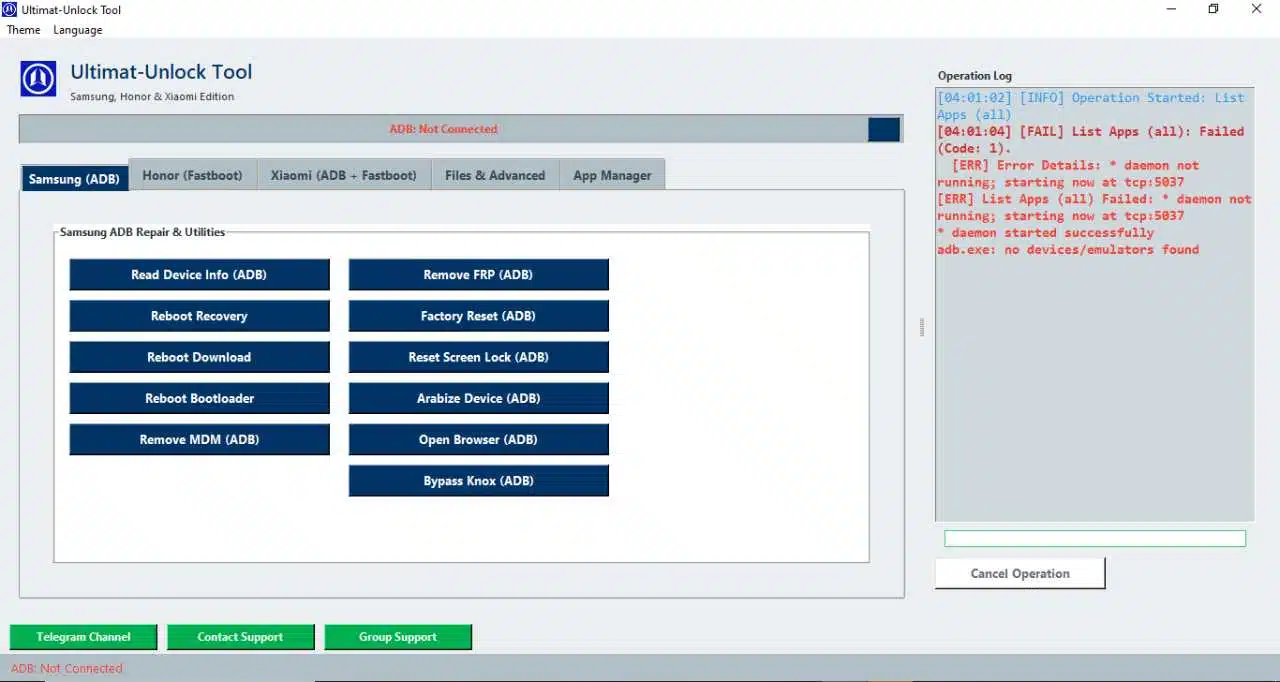
Ultimat-Unlock Tool Download is a Windows-based Android servicing utility designed for users and mobile technicians who work with selected Samsung, Honor, and Xiaomi smartphones. It combines several device-management functions in one interface, including ADB and Fastboot operations, device information reading, reboot controls, file management, application management, and selected maintenance options. The tool can help simplify routine Android servicing by bringing commonly used functions together in a single program. However, the availability of each feature depends on the connected device, Android version, security settings, and supported connection mode.
What Is Ultimat-Unlock Tool?
Ultimat-Unlock Tool Download, also described as Ultimate Multi Tool in some listings, is a mobile servicing application intended for compatible Android devices. It uses Android communication modes such as ADB and Fastboot to access supported device functions from a Windows computer.
The tool is promoted mainly for Samsung, Honor, and Xiaomi devices. Its interface brings together several tasks that technicians might otherwise perform using separate utilities or command-line tools. These include checking device information, rebooting into supported modes, transferring files, managing applications, and performing selected maintenance operations.
The exact capabilities of a release should be verified before installation. Not every feature works on every model, and certain operations may require specific drivers, device permissions, or compatible firmware.
Key Features of Ultimat-Unlock Tool:
1. Samsung Device Management
- The tool advertises selected Samsung servicing functions through ADB mode. These may include reading device information, rebooting into supported modes, and managing applications or files.
- Some releases also advertise security-related servicing options. Availability depends on the device’s configuration, software version, and the permissions granted to the connected computer.
2. Honor Fastboot Utilities
- Ultimat-Unlock Tool Download includes advertised Fastboot functions for selected Honor devices. Fastboot is commonly used for supported maintenance operations, reading device information, and restarting a phone into particular modes.
- The availability of advanced operations varies by model and bootloader state. Users should check device-specific documentation before making changes that could erase data or affect the operating system.
3. Xiaomi ADB and Fastboot Support
- The Xiaomi module is advertised for selected ADB and Fastboot tasks. Depending on compatibility, the interface may provide device information, reboot controls, and access to supported maintenance functions.
- Some advanced features may require additional permissions or a particular device state. A feature listed in the software should not be interpreted as guaranteed support for every Xiaomi, Redmi, or POCO device.
4. Device Information Reading
- Reading device information helps technicians identify the connected phone and review available software details before selecting a maintenance task. This can be useful when diagnosing connection problems or checking whether a device is compatible with a particular module.
5. File Transfer and Backup Functions
- The tool advertises file-transfer functions that can push files to or pull files from supported devices. Certain versions also list user-data backup and contact-export features.
- Access depends on Android permissions and the phone’s security configuration. A locked or encrypted device may restrict access to personal information, and file transfer should only be performed with appropriate authorization.
6. Application Manager
- The application-management interface can display installed packages, filter app lists, search package names, and perform supported app-management actions.
- Be careful when changing system applications. Removing or disabling essential packages can affect important features, including connectivity, notifications, or system stability.
7. ADB and Fastboot Command Support
- The utility advertises a way to execute supported ADB and Fastboot commands from its interface. This can help experienced technicians perform routine maintenance without repeatedly switching between separate command windows.
- Users should understand each command before running it, especially if it changes system settings, modifies the bootloader state, or erases data.
Supported Devices and Compatibility:
Ultimat-Unlock Tool Download is promoted for selected devices from three main manufacturers:
- Samsung: Selected Galaxy smartphones and tablets.
- Honor: Compatible models with supported Fastboot functionality.
- Xiaomi: Selected Xiaomi, Redmi, and related devices using supported ADB or Fastboot operations.
Compatibility can vary even between phones from the same product family. Before using the program, verify the exact model number, Android version, firmware configuration, and required connection mode.
Newer security updates may also change which operations are available. Always check the compatibility information for the specific version you intend to use.
System Requirements:
Before installing Ultimat-Unlock Tool Download, prepare a suitable Windows computer and verify the requirements supplied with the release.
- A compatible Windows operating system.
- A reliable USB cable that supports data transfer.
- Appropriate USB drivers for the connected device.
- A stable computer environment with sufficient storage.
- USB debugging enabled when the selected ADB function requires it.
- An authorized connection between the phone and computer.
- Internet access if the software or a particular service requires it.
The exact requirements may differ by release, so avoid assuming that every version uses the same drivers or setup procedure.
How to Prepare and Use Ultimat-Unlock Tool?
Step 1: Verify the Download
Obtain the program from a source you can verify. Check the version number and scan the downloaded files with reputable security software before running them.
Step 2: Prepare the Windows Computer
Review the software’s system requirements and install any required device drivers. Avoid installing unknown drivers or disabling security protections simply to run an unverified package.
Step 3: Identify the Android Device
Confirm the exact manufacturer and model. Check the device’s software version where possible, since supported operations may vary by firmware and security patch.
Step 4: Connect the Phone
Use a suitable USB cable and follow the instructions for the required connection mode. If ADB is needed, enable USB debugging where supported and authorize only a computer you trust.
Step 5: Select the Appropriate Module
Open the tool and choose the module corresponding to the connected device. Review the available options and make sure the intended function is compatible with the phone.
Step 6: Back Up Important Information
Before using any reset, firmware, or advanced maintenance feature, back up important files whenever possible. Some operations can erase data or change the device’s configuration.
Common Problems and Solutions:
Device Not Detected
Check the USB cable, drivers, connection mode, and any authorization prompt displayed on the phone. If the device is managed by an organization, certain connection features may be restricted.
ADB Authorization Error
Unlock the phone if possible and check whether it is asking you to authorize the connected computer. Use only trusted computers and follow the device’s official debugging instructions.
Fastboot Functions Are Unavailable
Some functions require a compatible model or a particular bootloader state. Check the exact model and consult the software’s compatibility documentation rather than repeatedly trying unsupported operations.
Application Manager Does Not Work Correctly
Certain applications cannot be modified through ordinary ADB permissions. System restrictions vary by manufacturer and Android version, so avoid removing packages whose purpose you do not understand.
Reset or Maintenance Operation Fails
The failure may result from unsupported firmware, missing drivers, an interrupted connection, or insufficient permissions. Stop and review the error message before trying a different operation.
Important Security and Data Protection Advice:
Ultimat-Unlock Tool Download includes advertised maintenance features that may affect device settings or protected account information. Use it only on phones you own or are authorized to service.
If a Samsung or Xiaomi phone requests account verification after a reset, follow the manufacturer’s official account-recovery process. For an organization-managed Honor or Android device, contact the administrator responsible for the device.
Avoid assuming that the tool can remove every account lock, management restriction, or security feature. Always verify the precise supported function and understand the risk of data loss before proceeding.
Final Words:
Ultimat-Unlock Tool Download is a multi-function Windows utility advertised for selected Samsung, Honor, and Xiaomi devices. Its ADB and Fastboot features, device information tools, file-management options, and application manager may be useful for routine Android servicing and troubleshooting. Before using it, verify the software source, check compatibility with your exact model, and back up important data. Choosing the correct function for the device helps reduce connection errors, unnecessary resets, and avoidable data loss.