TFT Samsung Tool V1.0 Best FRP, Flash & Unlock Fix
TFT Samsung Tool V1.0 Best FRP, Flash & Unlock Fix 2026
When dealing with Samsung phones that have a damaged EFS partition, a “null” IMEI number, or a tripped Knox counter, general repair software is often insufficient; resolving such issues on Samsung devices typically requires the use of specialized tools.
“TFT Samsung Tool” offers a wide range of functions and tools—organized under various tabs within the software—that leverage Samsung’s official communication protocols. The available options depend on the device’s processor and model; for instance, users can interact with the phone at the “testpoint” level (e.g., by reading or modifying values in the device’s memory), access and modify firmware in “Download Mode,” perform standard hardware repairs (such as replacing SIM cards, displays, buttons, or charging ports), alter the IMEI number and baseband settings, and install (“flash”) new firmware onto the device.
The author provides a detailed walkthrough of each function and offers guidance on how to connect the phone to a computer. Additionally, the text covers recommended workflows and addresses common issues that users might encounter. The text then addresses the legal use of the software and provides answers to frequently asked questions (FAQ).
Quick Facts At A Glance
| Detail | Specification |
|---|---|
| Tool Name | TFT Samsung Tool |
| Platform | Windows PC |
| Primary Focus | Samsung (Qualcomm and Exynos-based models) |
| Connection Modes | Testpoint, Download Mode, ADB/Root (Services) |
| Function Groups | Testpoint, Download Mode, Services, Network, Flash |
| License | Free To Download From The Official Page And Use Directly No Separate Activation Required |
What are Samsung TFT Devices, and who needs them?
TFT Samsung Tool covers a wide range of Samsung device repairs. It allows removal of FRP (Factory Reset Protection) keys, firmware flashing, and repair of network and baseband issues. It offers a variety of functions organized into five major groups. The “Testpoint” group handles superficial repairs, while the “Flash” group handles more in-depth repairs. The other two groups, “Networks” and “Services,” cover improvements of varying degrees of complexity.
One reason the TFT Samsung Tool provides so many functional groups is that different Samsung tools behave differently. For example, improving the baseband on a device with a Qualcomm processor is different from doing so on a device with an Exynos processor. TFT Samsung Tool helps technicians repair a wide range of Samsung devices, including Galaxy A series models and higher-end devices.
This tool is useful not only for professional technicians but also for freelancers who specialize in repairing Samsung devices. While other repair tools are available, the TFT Samsung Tool offers a wider range of functions. It is recommended that technicians familiarize themselves with the tool before using its more advanced features on their clients’ devices.
PC, Driver, and Configuration Requirements:
Make sure your workstation is properly configured before opening the Samsung Tool TFT. You will need a Windows PC, a reliable data cable, and a Samsung USB driver installed; in addition, the equipment must be in the appropriate mode for the tool to function. The connection involving the “Test Point” also requires the “QDLoader Qualcomm HS-USB 9008” driver. Run the tool as an administrator, as many low-level operations require this permission to function properly. Some antivirus programs may flag this type of utility as a threat; therefore, please download this tool from a trusted source. Ideally, add an exception for the download directory instead of disabling your antivirus protection entirely. Write operations can damage or corrupt the data on your phone; make sure the device has an adequate charge level and back up as much data as possible before using the device—especially if the phone can still boot up. The tool is free to use once downloaded.
Install drivers for each connection mode:
First, install the Samsung USB driver, as it supports “Download Mode” and most service functions. If you intend to perform operations via a “testpoint,” install also the Qualcomm 9008 driver; the device must identify the port as “Qualcomm HS-USB QDLoader 9008” in Device Manager for the test point function to work correctly. If the port displays a yellow warning icon, the driver installation failed. Reinstalling it should allow you to establish a connection through a testpoint the next time you try to use the device.
Test Center Functions: Low-level access to Qualcomm and MediaTek hardware:
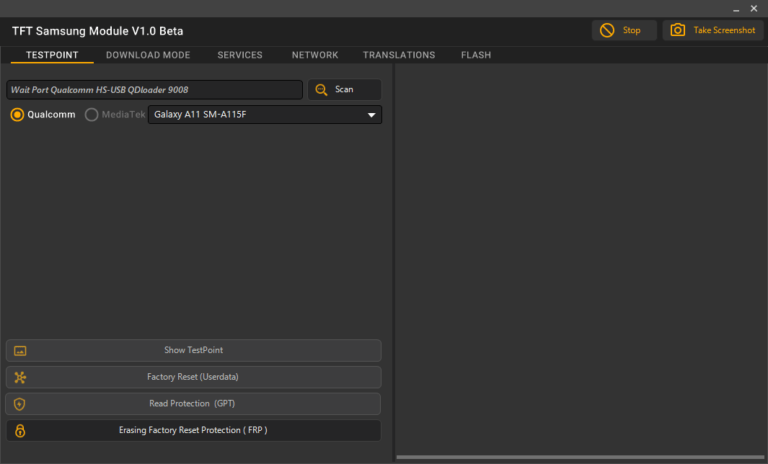
Testpoint mode represents the deepest level of connectivity offered by this feature on Samsung devices. This mode is designed to complement chipset-level functionality, which is necessary for handling some calls that require this kind of intervention. Before establishing a connection, the tool displays the status of the port (e.g., “Qualcomm HS-USB QDLoader 9008”), allowing you to verify the current connection status. The tool supports both Qualcomm and MediaTek chipsets and can pinpoint the location of a “testpoint” (physical test points) on the motherboard for models that need to be connected via a short circuit, rather than one based solely on software.
At this level, a factory reset creates a complete user data partition configuration, while the GPT read protection tool (GUID Partition Table) allows the extraction of the partition table. Removing the Factory Reset Protection (FRP) at this stage is the most aggressive option this product offers. It’s best to try other methods at a lower level (via a service or bootloader) before resorting to this method. Since Testpoint mode bypasses the normal boot process, it is the most dangerous mode in the tool; therefore, it is necessary to verify the correct model and chipset of your phone before executing any instructions.
Download Standard: FRP Management, Reactivation Lock, and Root Access:
Download mode is where most of the common tasks related to FRP on Samsung devices are performed using the Samsung TFT tool. The “One Click Reset FRP/React/EE” function enables automatic removal of FRP, Reactivation Lock, or EE (Enterprise Edition) locks on devices with Qualcomm or Exynos chipsets. For situations that require more control, options such as “Reset FRP/React/EE” and “Manual Flash File & Reset FRP/React/EE/RMM/MDM” are available. These allow Reactivation/EE unlocking, manual firmware flashing, and RMM (Remote Mobile Management) or MDM (Mobile Device Management) unlocking.
The “Reset Password Without Losing Data” feature in Download Mode is invaluable, because forgetting a password that locks the screen is a common issue for users—for them losing data is unacceptable. Other options (such as “Enable ADB and Root in Download Mode” or “Enable ADB and Root independently”) provide in-depth access to services and network functions when activating ADB. Always run the “Read Info” option before using any function in Download Mode; devices with Qualcomm and Exynos processors follow different internal paths, even if the results shown on screen appear to be the same.
Choosing between Qualcomm and Exynos systems:
The Download Mode option on Samsung devices differs slightly between Qualcomm and Exynos models, due to differences in the bootloader security model for each. Generally, trying to use the Qualcomm-designed FRP system on an Exynos device (or vice versa) will simply result in failure; while it won’t cause damage, it will be an unsuccessful attempt and may leave the device stuck in Download Mode longer than necessary. First, check Samsung’s chipset model names to confirm the difference. Alternatively, you can run “Read Info” to verify it yourself. Once confirmed, select the appropriate version for your device.
“Services” Tab: Main Maintenance Toolkit:
The “Services” section of the TFT Samsung tool is where most of the maintenance work is done, excluding those related to FRP. The “Read Info” option successfully sets up the session; if root access exists, you can use the “Format Device (root)” function to perform a complete wipe. The “Enable HW Version” and “Enable Call Record” options allow you to enable hardware features that fail by default in certain regions.
In addition, this tab contains tools such as “S-Health Knox Fix,” “Fix Knox (new system),” and other related tools designed to troubleshoot Knox-related issues that may arise after a firmware installation or ROM replacement. The “Fix System UI (no root)” task…
Features of the TFT Samsung Tool:
Testpoint
- Wait Port Qualcomm HS-USB QDloader 9008
- Qualcomm
- MediaTek
- Show TestPoint
- Factory Reset (Userdata)
- Read Protection (GPT)
- Erasing Factory Reset Protection ( FRP )
Download Mode
- One Click Reset FRP/React/EE Download Mode
- Qualcomm
- Exynos
- Reset FRP/React/EE
- Manul Flash File & Reset FRP/React/EE/RMM/MDM Download Mode
- Reset password without losing data Download Mode
- Reset Password
- Enable ADB & ROOT Download Mode
- Enable ADB & ROOT
Services
- Read Info
- Format Device (Root)
- Enable HW Version
- Enable Call Record
- S-Health Knox Fix
- Fix Knox New Mth
- Fix System UI (No Root)
- Disable Update System
- Enabling Diag Mode
- BASEBAND REPAIR (ADB)
- Add Arabic Langunge Adb (Root)
- Add Arabic [SAM/HTC/SONY/ETC .. ]
- Removing Please Call Me
- BASEBAND REPAIR (DOWNLOAD MODE)
- EMERGENCY CALLS REPAIR (DOWNLOAD MODE EXYNOS CPU)
- Reset Lock Screen (Root)
- Bypass FRP Mth1
- Reset GMail
- Bypass Reactivation Only Samsung
- Enable Samsung Diag
- Add Arabic Language Mth2
- Software Fix
- SoftBrick Fix
- Hide Developer Options
- Hard Reseting
- Exit Factory Mode
- CSC / Vertify
- Enable Blacklist
- Enable Mobile Data (No Root)
- CP/MODEM REPAIR (ADB)
Step-by-Step Connection And Repair Workflow:
Do This For Every Job No Matter How Routine It Seems.
- Install The Samsung Usb Driver As Well As Qualcomm 9008 Driver If Testpoint Work Is Planned.
- If The Phone Can Still Be Powered On Fully Charge It And Back Up The Data If You Can.
- Open Tft Samsung Tool With Administrator Rights.
- Go To The Tab That Corresponds With Your Job: Services For Basic Repair Jobs Download Mode For Frp And Reactivation And Flash For Firmware Writes And Testpoint For All Else.
- Put The Phone In The Requested Boot State If It’s Not Already There.
- Confirm The Port Shows Up In Device Manager Without A Warning Sign.
- Always Run Read Info To Get The Current State Of The Phone Before Using Any Other Feature.
- Backup Either The Nv Data Or Efs Data Before Using Any Of The Network Tab Functions.
- Once The Desired Function Is Completed Let It Finish And Do Not Disconnect The Usb Until The Log Says It Is Done.
- A Phone That Reboots Doesn’t Mean It’s Truly Fixed.
Test The Sim And Wi-fi And Call The Customer To See If They Can Sign Into Their Account Before Giving It Back.
Common Errors And Real Troubleshooting:
Problem Likely Cause Fix
- Qualcomm Port Not Detected Driver Missing Or Not Installed In Testpoint Context Reinstall 9008 Driver. Confirm “wait Port” Status Before Connecting.
- Frp Method Fails On Exynos Model Qualcomm Method Used By Mistake Check The Exynos Variant And Re-verify The Model.
- Imei Shows Null After Flash Wrong Bl/ap/csc Combination Written Reset With Correct Firmware For The Exact Model And Csc.
- Knox Warning After Repair Fix Applied Without Root Check Use Fix Knox New Mth Or S-health Knox Fix Depending On The Displayed Error.
- No Signal After Efs Operation Nv Data Not Backed Up Before Reset Efs Restore From Read Nv Data If A Backup Exists.
- Flash Stops Partway Mismatched Firmware Files Across Bl/ap/cp Slots Check All Files Come From Same Build Before Attempting Again.
- In Most Cases Failures Can Be Attributed To Incorrect Mode Driver Or Firmware Not To Issues With The Tool Itself.
Pro Safety Tips and Anti-Brick Precautions:
It’s Important To Never Interrupt A Flash Or Testpoint Operation While It’s In The Middle Of Writing. Samsung’s Nand Writes Can Appear Frozen For Up To Two Minutes During A Slow Storage Operation And Disconnecting During That Time Is One Of The Only True Irreversible Mistakes With This Tool. Treat Every Flash Session As If It Could Be The Last.
When Performing Any Operation In The Network Tab Be Sure To Backup Your Nv Data And Efs First Especially For Imei And Baseband Calibration. These Operations Can Easily Come Back Corrupted If Not Backed Up First. Avoid Using A Usb Hub During Flash Or Testpoint Operations As The Power Draw During A Write Is Higher And Hubs Can Introduce Voltage Drops Which Increase The Chance Of An Unexpected Disconnect. Also Be Sure To Use Wall Power During Operations To Avoid Your Laptop Going To Sleep.
Final Thoughts:
Performing Frp Removal Reactivation Bypasses Or Clearing Mdm/rmm Locks All Serve Valid Repair Purposes But Each Comes With Its Own Responsibility. Only Perform These Functions On A Device That You Own Or One That A Customer Has Handed Over To You With Proof Of Ownership Like A Receipt Or A Matching Imei On The Device’s Original Box. Using Tft Samsung Tool To Bypass Locks On A Device That You Do Not Own Creates A Serious Legal Risk For Your Business.
TFT Samsung Tool
Download Link:: Mediafire – 4shared