TFT Driver Installer Free Download All-in-One USB Driver Setup Tool
Repairing a phone that is not being recognized can be time-consuming, as it often requires locating and installing the correct USB driver.
“Tft Driver Installer” solves this problem. This tool provides USB drivers for a wide range of manufacturers whose devices frequently appear in repair shops—including Unisoc, Samsung, Qualcomm, MediaTek (MTK), Motorola, Spreadtrum (SPD), LG, Vivo, and Huawei—as well as for the Android MTP protocol. As the name suggests, it is a driver installation tool. Instead of visiting each manufacturer’s website to download and install drivers one by one, you can simply run this installer to add all the necessary drivers to your system.
The purpose of this guide is to provide information about each driver included in the package, its functions, and common issues that may arise. The information presented here will help technicians install drivers and troubleshoot problems related to device detection via a port. At the end of the guide, you will also find a note regarding the legal aspects of these drivers, as well as a brief FAQ section.
Quick Facts At A Glance:
| Detail | Specification |
|---|---|
| Tool Name | TFT Driver Installer |
| Platform | Windows PC (32-bit & 64-bit, depending on driver) |
| Drivers Included | Unisoc, Intel Android, USBDK, generic MTP, Samsung, Qualcomm MTK, Qdloader HS-USB, Motorola, SPD, LG, Vivo, Huawei, Filter Driver |
| Primary Use | Fixing Port Detection And Enabling Flash/service Tool Connections |
| License | Free To Download From The Official Page And Use Directly No Separate Activation Required |
What is the TFT Driver Installer, and why do technicians need it?
The TFT Driver Installer is a program that solves a highly tedious problem faced by mobile phone (GSM) technicians. Flashing tools and FRP (Factory Reset Protection) removal tools function by connecting to a phone via specific drivers. Although Windows includes default drivers for most phones, it sometimes fails to recognize a device, necessitating the manual installation of model-specific drivers. The TFT Driver Installer eliminates the hassle of searching for, downloading, and installing drivers for each phone individually.
A single run of the TFT Driver Installer provides drivers for phone models from various brands, including Unisoc, Samsung, Qualcomm, Motorola, SPD, LG, Vivo, and Huawei. Flashing/FRP tools and repair utilities—such as those used in EDL mode—require specialized drivers. Technicians in mobile phone repair shops use these tools constantly. While the equipment used in this sector varies significantly, independent technicians, in particular, make extensive use of the TFT Driver Installer. This is because the drivers included in the TFT driver installer help avoid the frustration of having to install individual drivers for each phone. By providing a comprehensive driver package, the number of technical issues—such as “device not recognized” errors—is reduced.
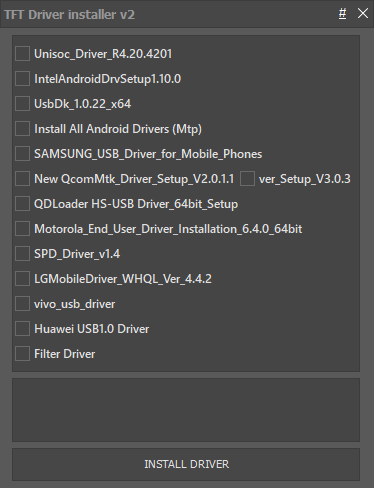
Features TFT Driver Installer:
- Unisoc Driver R4.20.4201
- Intel Android DrvSetup1.10.0
- Usbdk 1.0.22 X64
- Install All Android Drivers (mtp)
- Samsung Usb Driver For Mobile_phones
- New Qcommtk Driver
- Qdloader Hs-usb Driver_64bit_setup
- Motorola End User Driver Installation
- Spd Driver
- Lg Mobile Driver
- Vivo Usb Driver
- Huawei Usb1.0 Driver
- Filter Driver
Why USB Drivers Are More Important Than You Might Think:
An incorrect or missing driver is often the reason why the software flashing process fails to even begin. For Windows to communicate with a phone during this process, it must correctly identify the device based on its connection type—whether it is a Qualcomm EDL mode port, a MediaTek “pre-loader” port, or a standard MTP connection. If a driver is incorrect or outdated, Windows may fail to recognize the connected phone entirely. Regardless of the user’s level of experience, driver incompatibility will always lead to connectivity issues.
One potential issue when installing drivers for phones from different manufacturers is that they may become incompatible with one another, leading to conflicts. While a “filter driver” can sometimes help, it does not always resolve the situation. Comprehensive driver packages are designed to prevent such conflicts, making them a better choice than installing individual drivers one by one. Properly installed phone drivers can resolve the vast majority of issues where software fails to “see” a connected phone.
Unisoc and SPD Drivers: Solutions for Budget Chipsets:
If you frequently repair budget-class Android devices, the Unisoc driver (version R4.20.4201) will become an indispensable tool in your workspace. Most such devices are powered by Unisoc (formerly known as Spreadtrum) chipsets. This driver provides the necessary connectivity for diagnosing Unisoc devices and flashing software. When a phone is switched into service mode, it often appears as an “unknown device” in the Windows system—this is precisely the state that the driver helps to resolve. It is essential to install it when performing any software updates or removing FRP (Factory Reset Protection) on Unisoc devices. Note that if a connection cannot be established, the driver will not be effective.
The SPD driver is designed for Spreadtrum (SPD) devices, as well as other models supported by the Unisoc driver. Therefore, when working with budget-friendly phones (such as those from Itel, Infinix, or Tecno), it is recommended to install both of these drivers. If you are unable to perform a factory reset or remove FRP (Factory Reset Protection) on a Unisoc-based phone due to connection issues, it is worth checking whether both Unisoc and SPD drivers are installed.
Regarding USB drivers for Samsung, Motorola, and Vivo:
The Samsung USB driver enables MTP detection of Samsung phones and allows them to be loaded using tools such as Odin. This driver must be kept up to date to function correctly with Samsung devices. Although it plays a crucial role in the repair process, it is frequently updated—often alongside other driver packages—to ensure support for newly released devices.
Installing the Motorola End-User Driver provides the necessary components for general connectivity with Motorola devices; it is also often required for the device to be detected while in Fastboot mode. Finally, the Vivo USB driver ensures the necessary connection to Vivo devices. It is important to note that the order in which drivers are installed matters when working with Vivo devices. Typically, if a Vivo device fails to be detected after several other drivers have been installed, the Vivo USB driver should be reinstalled.
Qualcomm, LG, and Huawei Drivers for Flash Mode Operations:
The “Qcommtk” driver and the “QDLoader HS-USB” driver serve distinct functions and warrant separate discussion. The “Qcommtk” driver handles general communication related to Qualcomm/MTK-based devices, while the “QDLoader” driver is responsible for establishing a connection and enabling EDL (Emergency Download) mode. Through EDL mode, various tools and software can perform operations such as flashing, bypassing FRP (Factory Reset Protection), and repairing partitions on Qualcomm-based chipsets.
If a Qualcomm device appears in Device Manager, yet the flashing software fails to establish a connection, the issue likely lies with the “QDLoader” driver. Similarly, the “LG Mobile” driver and the “Huawei USB 1.0” driver function in an analogous manner, specific to their respective brands. These drivers facilitate communication between software and the device via the MTP protocol, enabling access to brand-specific modes and services.
The TFT driver installer includes these drivers alongside the standard Qualcomm drivers, ensuring that users have access to both the general Qualcomm drivers and those specific to individual brands. Notably, many LG devices and certain Huawei models are equipped with Qualcomm chipsets. In addition to brand-specific drivers, users may need Qualcomm drivers to establish a connection with service modes.
Generic and Support Drivers:
The general Android driver installation (MTP) serves as a universal solution for file transfer and debugging. It covers Android devices whose brands are not listed among the other drivers in this package. Generally, it is safe to install this driver, even if you have already installed a brand-specific driver for your device. Intel Android Drvsetup 1.10.0 is a driver…
Step-by-Step Installation and Connection Guide
Do This On A Clean Windows Installations Or When Setting Up A New Bench Pc.
- Head To The Tft Driver Installer Page And Download The Drivers.
- Make Sure You Close All Flashing Tools And Frp Tools.
- As Administrator Run The Installer.
- Install The Intel Android Drvsetup And Usbdk Drivers Along With The Android Mtp Drivers.
- Next Install The Filter Driver.
- Now Install The Driver Suite For Your Device’s Chipset From Samsung Qualcomm Motorola Spd/unisoc Lg Vivo And Huawei In That Order.
- Restart Your Pc.
- Connect A Phone And Check If It Shows Up In Device Manager. If It Does Check If It Shows Up With A Yellow Question Mark.
- Finally Check If Your Flashing Tool Detects The Device.
If You Still Can’t Connect A Phone Of A Certain Brand After Completing All The Steps Reinstall That Driver To Finish.
Common Driver Errors and Real Troubleshooting
Problem Likely Cause Fix
- Device Labeled “unknown Device” Wrong Windows Version Or Missing Driver Make Sure You Have The Right (32-bit Or 64-bit) Version Of Windows Uninstall The Current Driver Reinstall The Driver
- Phone Won’t Enter Edl Mode Missing Qdloader Driver Install The Qdloader Hs-usb Driver 64-bit
- Device Connects And Disconnects Filter Driver Missing Replace Filter Driver Reboot Computer
- Device Connects But Can’t Be Programmed Outdated/incomplete Driver Replace Samsung Usb Driver
- Device Detection Failed After Other Brand Driver Installs Driver Installation Order Install Vivo Usb Driver Last
- Device Manager Shows Device But Flashing Tool Can’t See Device Missing Usbdk Framework Install Usbdk Framework
- Most Issues With Drivers Are Caused By Windows Bit Version Or Order Of Installation. Check This Table First.
Pro Tips For A Stable Driver Setup
To Avoid Usb Conflicts From Multiple Pieces Of Software Installed On Your Pc It’s Best To Keep Your Flashing Bench On A Different Pc From Your Main Work Pc. If You Can’t Do That Make A Note Of The Order And Which Brand Drivers You Install On A Shared Pc. This Will Help Determine Conflicts More Quickly.
It’s Best To Not Install Any Driver Updates During A Flash Session. Stop Your Tool And Disconnect Your Phone When You’re Done Flashing For That Session Since Windows May Require A Restart After A Driver Change And A Restart During Flashing May Corrupt Your Flash File. Use Known Good And Stable Usb Ports For Flashing Especially Ports On The Motherboard At The Back Of Your Pc And Avoid Ports On The Front And Side. Long Flashes And Efs Operations May Be Interrupted And Corrupted If The Usb Connection Is Unstable.
Final Thoughts
Tft Driver Installer Only Provides A Connection And Does Not Modify Locks Accounts Or Firmware. Drivers Included With This Package Are Only To Assist In Repair Work. Flashing Or Frp Tools Used In Conjunction With This Driver Package Alter The Ownership Status Of The Device In The Same Way It Always Has. Use The Tools Enabled By This Driver Package Only On Devices Which You Own Or On Devices Which The Customer Has Provided You Proof Of Ownership And Possession Of The Device.
Is Keeping This Driver Package Necessary? For A Single Brand Technician Probably Not However If You Are A Technician That Works On Multiple Brands This Package Is A Good Way To Simplify The Driver Installation Process. This Driver Package Is Free To The Public So The Author Probably Uploaded This Package To Simplify Driver Installation For The Public. Since This Package Simplifies The Driver Installation Process For Multiple Brands It Is Probably Easier To Use This Package Rather Than Going To Each Manufacturer Website To Download Individual Drivers.
TFT Driver Installer