Android Device Command Center Tool Free Download For Your Windows 2026
Android Device Command Center Tool Free Download
Android Device Command Center Tool is a Windows-based utility designed to help users interact with Android smartphones and tablets through Android Debug Bridge (ADB) and Fastboot commands. It brings several device-management and troubleshooting functions into a graphical interface, making it easier to perform supported operations without entering every command manually in a terminal. The tool is intended for Android technicians, developers, and experienced users who need to reboot devices into different modes, inspect command output, or perform selected maintenance tasks. Its available functions depend on the device model, Android version, bootloader status, permissions, and installed drivers.
What Is Android Device Command Center Tool?
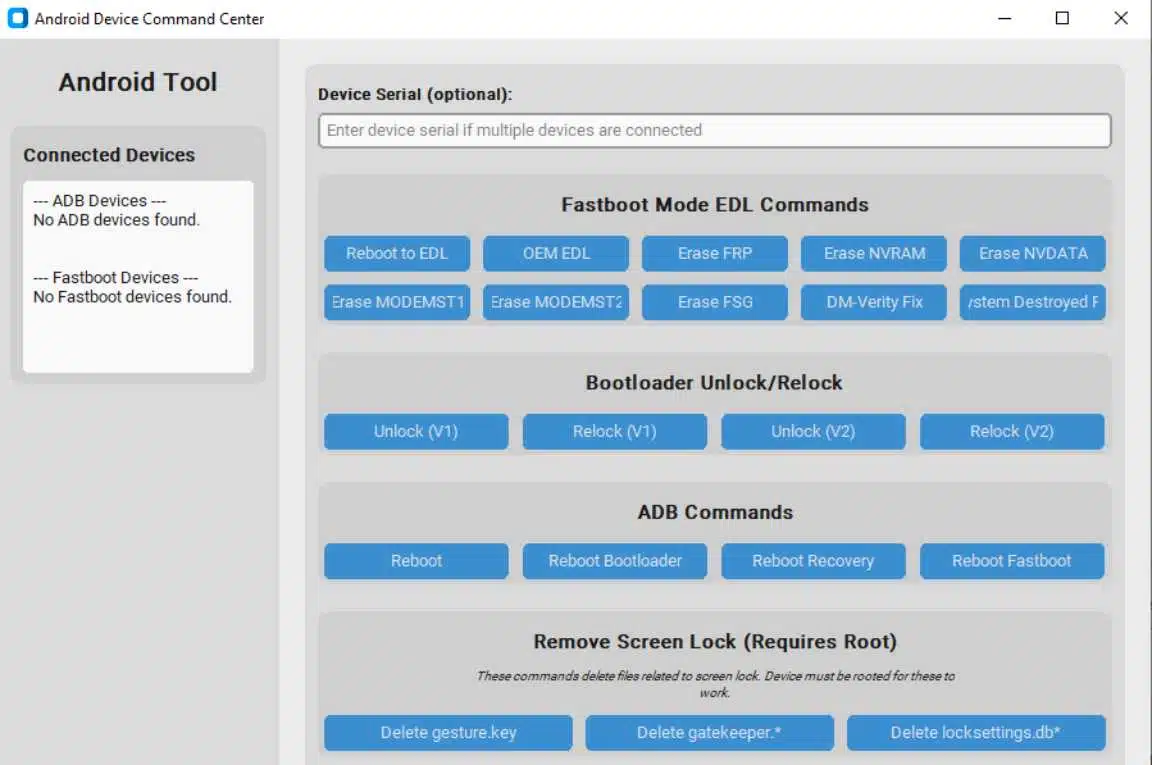
Android Device Command Center Tool provides a centralized interface for selected Android servicing commands. ADB enables communication between a computer and an authorized Android device, while Fastboot is commonly used for supported bootloader and firmware-related operations. By organizing these commands into separate sections, the utility can make routine troubleshooting more convenient.
The tool may be useful when diagnosing boot-related problems, testing applications, restarting a connected device, or reviewing command results. However, it is not a universal repair solution, and a feature listed in the interface may not work on every Android phone.
Main Features of Android Device Command Center Tool:
1. ADB Reboot Options
The utility includes several reboot options for supported devices, including:
- Normal reboot
- Reboot to bootloader
- Reboot to recovery
- Reboot to Fastboot mode
These functions can help technicians switch between Android operating modes during authorized troubleshooting. The result depends on whether the device is detected correctly and whether the required debugging authorization is available.
2. Fastboot and EDL-Related Commands
- The published feature list includes Fastboot and Emergency Download Mode (EDL)-related commands. These functions are generally intended for advanced servicing situations where the hardware and software support the selected mode.
- EDL availability differs by manufacturer and model, and some devices require authorized service access. Selecting an incompatible command or interrupting a critical operation can leave a device unable to boot normally.
3. Bootloader Unlocking and Relocking
- Android Device Command Center Tool lists bootloader unlock and relock options. Bootloader operations can be useful for development, supported firmware maintenance, and certain advanced repair procedures.
- Unlocking a bootloader may erase user data and reduce some of the device’s security protections. Relocking a bootloader while incompatible or modified firmware is installed can also prevent the phone from starting. Always check the manufacturer’s instructions and confirm firmware compatibility before proceeding.
4. Android System Troubleshooting
- The tool advertises selected commands for addressing certain system-related issues, including DM-Verity and system-integrity problems. These functions may be relevant when investigating a device that fails to boot after a software modification or an unsuccessful firmware operation.
- System-level repairs require particular care because the correct solution depends on the original cause of the problem. Users should confirm the device model, firmware build, and partition layout before attempting any modification.
5. Screen-Lock-Related Functions
- The published description lists screen-lock-related operations that require root access. These options are intended for specialized troubleshooting scenarios and may not work on modern Android releases because security mechanisms differ across versions.
- Only perform lock-related servicing on devices you own or are explicitly authorized to maintain. For a forgotten PIN, password, or pattern, use the manufacturer’s official recovery options where available. Some recovery procedures erase personal data.
6. Live Command Output and Logging
- The utility includes a live command-output console, status messages, and a progress indicator. These features can help users monitor whether a command has completed, identify warnings, and review errors during troubleshooting.
- Clear output and organized command sections can also make it easier to distinguish successful operations from commands that require further investigation.
7. Multiple Device Handling
- The software description mentions serial-number handling for multiple connected devices. This can be useful in a workshop or development environment where more than one Android device may be connected to the same computer.
- Before running any command, verify the selected device carefully. Applying a command to the wrong connected phone can lead to unwanted changes or data loss.
8. User Interface and ADB/Fastboot Detection
- The tool provides a graphical interface with separate command groups and light, dark, and system appearance options. Its published description also mentions warnings for missing ADB or Fastboot components.
- These interface features can make the utility easier to navigate, but users should still understand the purpose and consequences of each command before running it.
How to Install Android Device Command Center Tool on Windows?
Before installation, prepare a Windows computer, a reliable USB cable, and the correct USB drivers for your Android device.
- Obtain the installation package from a source you trust.
- Scan the downloaded files with reputable security software before opening them.
- Extract the archive if the package is compressed.
- Open the extracted folder and review any included instructions.
- If the package contains an installer, run it and follow the displayed setup prompts.
- Complete the installation and launch the program.
- Connect your Android device and install the appropriate USB drivers if necessary.
- Enable USB debugging only if required for your task, and authorize the computer on the device when prompted.
Some releases may require additional setup or a password supplied with the original package. Do not assume that every third-party installer is safe; verify the source and scan the files before proceeding.
How to Use Android Device Command Center Tool?
After installation, open the application and connect a supported Android device. Start with a basic detection or reboot operation before attempting advanced maintenance.
- Confirm that the correct device appears in the tool.
- Check whether ADB or Fastboot is required for the selected operation.
- Read any warnings and verify the command’s purpose.
- Back up important files before performing operations that may modify system settings or partitions.
- Allow the operation to finish without disconnecting the USB cable.
- Review the command output for errors before proceeding with another task.
For advanced operations such as bootloader changes or firmware recovery, consult the manufacturer’s documentation for your exact model.
System Requirements and Compatibility:
Android Device Command Center Tool is designed for Windows computers, but the exact Windows versions supported may vary by release. Device compatibility also depends on the Android operating system, USB drivers, connection mode, bootloader configuration, and authorization requirements.
A device that supports ADB may not support every Fastboot or EDL operation. Likewise, commands that worked on an older Android release may behave differently on a newer version. Always confirm compatibility before making system-level changes.
Advantages of Android Device Command Center Tool:
The main advantage of the utility is its centralized interface for selected ADB and Fastboot operations. It can reduce the need to remember individual commands and provides visible output that helps users monitor their troubleshooting work.
The separate command groups, reboot options, and logging features may be helpful for developers and mobile technicians who regularly work with supported Android devices. However, the tool does not guarantee successful repairs, and its advanced functions require suitable technical knowledge.
Important Safety Precautions:
Download the utility only from a source you trust. Avoid unknown repackaged installers, and never disable antivirus protection simply because an installer requests it. Back up important data before performing bootloader, partition, or system-related operations.
Do not run commands on devices without the owner’s permission. For Google account verification, factory-reset protection, or organization-managed restrictions, use official account recovery and authorized administrator or service-provider assistance.
Final Words:
Android Device Command Center Tool is a Windows utility that brings selected ADB, Fastboot, reboot, logging, and advanced device-maintenance functions into one interface. It may help experienced users and technicians manage supported Android devices and investigate certain software problems. Before using it, verify the download source, confirm device compatibility, and understand the risks of each operation. Careful preparation and authorized use are essential for avoiding unnecessary data loss or device problems.