How To Run Windows Software On Mac
How To Run Windows Software On Mac – Complete Guide
Mac computers are popular for their performance, reliability, and user-friendly macOS environment. However, some applications are designed exclusively for Microsoft Windows and cannot run directly on a Mac. These may include business programs, engineering tools, Windows utilities, older applications, and certain games. Fortunately, there are several ways to run Windows software on a Mac, depending on the Mac’s processor, the application’s requirements, and the version of macOS being used. Options include compatibility tools, virtual machines, remote Windows computers, and cloud-based Windows environments.
Why Run Windows Software on a Mac?
Although macOS offers a large collection of applications, some users depend on Windows-only software for work, education, technical tasks, or entertainment. Switching between computers can be inconvenient, especially when a particular Windows application is essential to a daily workflow.
Running Windows software on a Mac can help users access specialized programs while continuing to use their preferred Apple computer. The best method depends on whether the application needs a complete Windows environment or can operate through a compatibility layer.
1. Use Parallels Desktop:
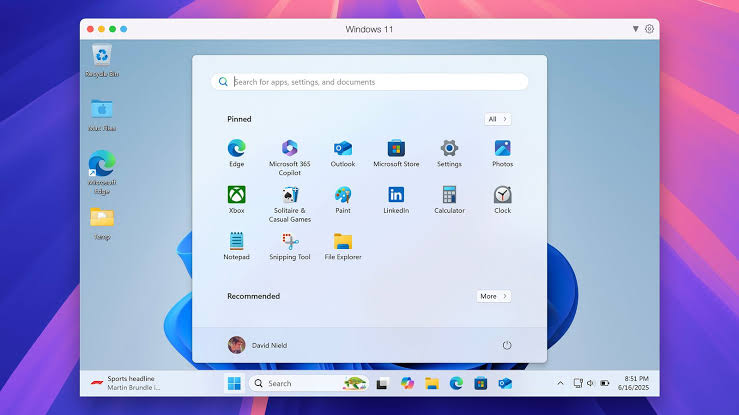
Parallels Desktop is a virtualization application that allows users to run Windows inside macOS. It is a popular option for Mac users who want to use Windows applications without restarting their computers.
With virtualization, Windows runs in a virtual machine, and users can switch between macOS and Windows applications. Depending on the configuration, Windows programs can appear alongside Mac applications on the desktop.
Parallels Desktop supports Apple silicon Macs and Intel-based Macs through different configurations, but the available Windows version and supported features depend on the Mac’s processor and the software release.
Best for: Office applications, business software, development tools, and other Windows programs that work in a supported virtual machine.
2. Use VMware Fusion:
VMware Fusion is another virtualization option for running supported operating systems on a Mac. It creates a virtual machine where Windows can run separately from the main macOS environment.
Users can configure virtual hardware, install a compatible Windows version, and run applications within that environment. Hardware-intensive programs may perform differently from applications running directly on a Windows PC.
Compatibility depends on the Mac’s processor, the Windows version, and the requirements of the application.
Best for: Developers, IT professionals, testers, and users who need a virtual Windows environment.
3. Try CrossOver:
CrossOver provides a compatibility layer that can run certain Windows applications on macOS without requiring a full Windows virtual machine. It is based on Wine technology and translates many Windows application calls into forms that can work with macOS.
Because it does not require a complete Windows installation for supported applications, CrossOver may use fewer system resources than virtualization. However, not every Windows program works correctly, and compatibility can vary between application versions.
Best for: Users who want to run specific supported Windows applications or games without installing a full copy of Windows.
4. Use Wine:
Wine is an open-source compatibility layer that allows some Windows applications to run on Unix-like operating systems, including supported macOS configurations.
Wine is not a complete Windows operating system. Instead, it provides implementations of Windows interfaces that applications may need. Some programs work well, while others require additional configuration or may not work at all.
Setup can be more technical than using a commercial application, particularly when dependencies or application-specific settings are required.
Best for: Experienced users who are comfortable troubleshooting application compatibility.
5. Use Remote Desktop:
If you already have access to a Windows PC, Remote Desktop can let you control that computer from your Mac. The Windows application runs on the remote computer, while your Mac displays the remote desktop.
This approach is useful when software depends on Windows-specific hardware, drivers, or features that are difficult to reproduce locally. Performance depends on the network connection and the remote computer’s capabilities.
Users should configure remote access securely and avoid exposing remote desktop services directly to the internet without appropriate protection.
Best for: Business applications, specialist software, and programs that require a real Windows computer.
6. Use a Cloud Windows PC:
Cloud PC services provide a Windows desktop hosted on remote servers. You connect to the service from your Mac through a supported client or browser and use applications in the remote Windows environment.
This can be convenient when you do not own a Windows computer or want a separate environment for work. However, performance depends on internet speed, subscription limits, remote hardware, and the application’s requirements.
Best for: Remote work, occasional access to Windows-only programs, and users who need a managed Windows environment
Can You Install Windows Directly on a Mac?
The answer depends on your Mac’s processor.
Intel-based Macs can support Boot Camp for installing a compatible version of Windows, provided the particular Mac and operating-system versions are supported. Boot Camp allows users to start the computer in either Windows or macOS rather than running both simultaneously.
Apple silicon Macs, including models using M-series processors, do not support Boot Camp. Users generally need a compatible virtualization solution, a compatibility layer, or remote Windows access instead.
Which Method Should You Choose?
The best option depends on your needs, budget, and Mac hardware.
- For convenience: Consider a supported virtualization application such as Parallels Desktop.
- For development and testing: VMware Fusion or another suitable virtual machine may fit your workflow.
- For selected applications: Try CrossOver or Wine after checking compatibility.
- For software requiring a real Windows PC: Use Remote Desktop or a cloud Windows computer.
- For Intel Macs: Check whether Boot Camp is supported for your exact model and software versions.
Before paying for any software, confirm that the Windows application you need is supported by the selected method.
Tips for Better Performance:
Running Windows software on a Mac can require additional memory, storage, and processing power. To improve the experience, close unnecessary applications, keep macOS and the selected Windows environment updated, and allocate reasonable resources to virtual machines.
For applications involving graphics, large projects, or demanding calculations, check hardware acceleration and compatibility requirements before choosing a method. Make sure you have enough free storage for the Windows environment and its applications.
Common Problems and Solutions:
Windows Software Will Not Open
The application may require a Windows feature or dependency that is unavailable in the selected environment. Check the software’s system requirements and consult the compatibility documentation for your virtualization or compatibility tool.
Slow Performance
A virtual machine may have insufficient memory or processor resources, or the Mac may be running many applications simultaneously. Close unnecessary programs and review the virtual machine’s settings.
Driver or Hardware Errors
Some applications rely on Windows-specific drivers, USB devices, or specialized hardware. These programs may work better on a physical Windows computer accessed remotely than in a virtual machine or compatibility layer.
Installation Problems
Verify that the Windows installer matches the environment and that you have a legitimate software license. On Apple silicon, confirm whether the application and required Windows version support the relevant processor architecture.
Final Words:
Running Windows software on a Mac is possible through several approaches, including virtualization, compatibility layers, Remote Desktop, and cloud-based Windows environments. Parallels Desktop and VMware Fusion provide full virtual-machine environments, while CrossOver and Wine can run selected applications without a complete Windows installation. Intel Mac users may also be able to use Boot Camp on supported models. The right choice depends on your Mac’s processor, the application you want to run, your performance requirements, and your budget. Checking compatibility before installation can save time and help you choose the most reliable solution.